Surveys
Build, publish, and analyze surveys — customer feedback, NPS, employee/HR surveys, and 360-style peer reviews.
How to view all surveys
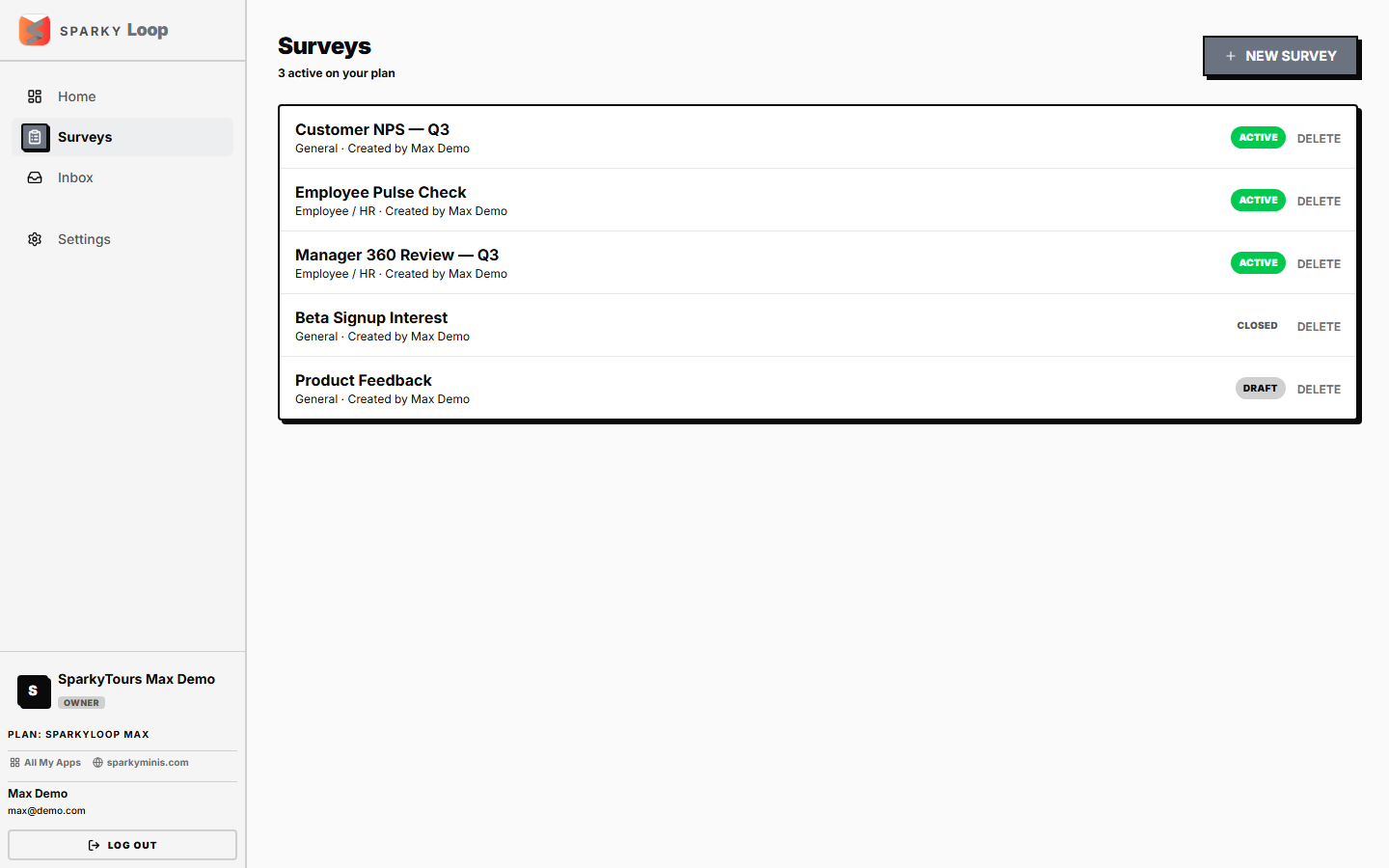
Open Surveys from the sidebar. You'll see every survey with its title, type, status, and response count.
How to create a survey
Click "New Survey." Give it a title, and optionally start from a template (which pre-fills a set of questions) or start blank. If your plan includes employee/HR surveys, you can also pick that survey type. A new survey starts as a draft — you can create as many drafts as you like; your plan's active-survey limit only applies once you publish.
How to add, edit, remove, or reorder questions
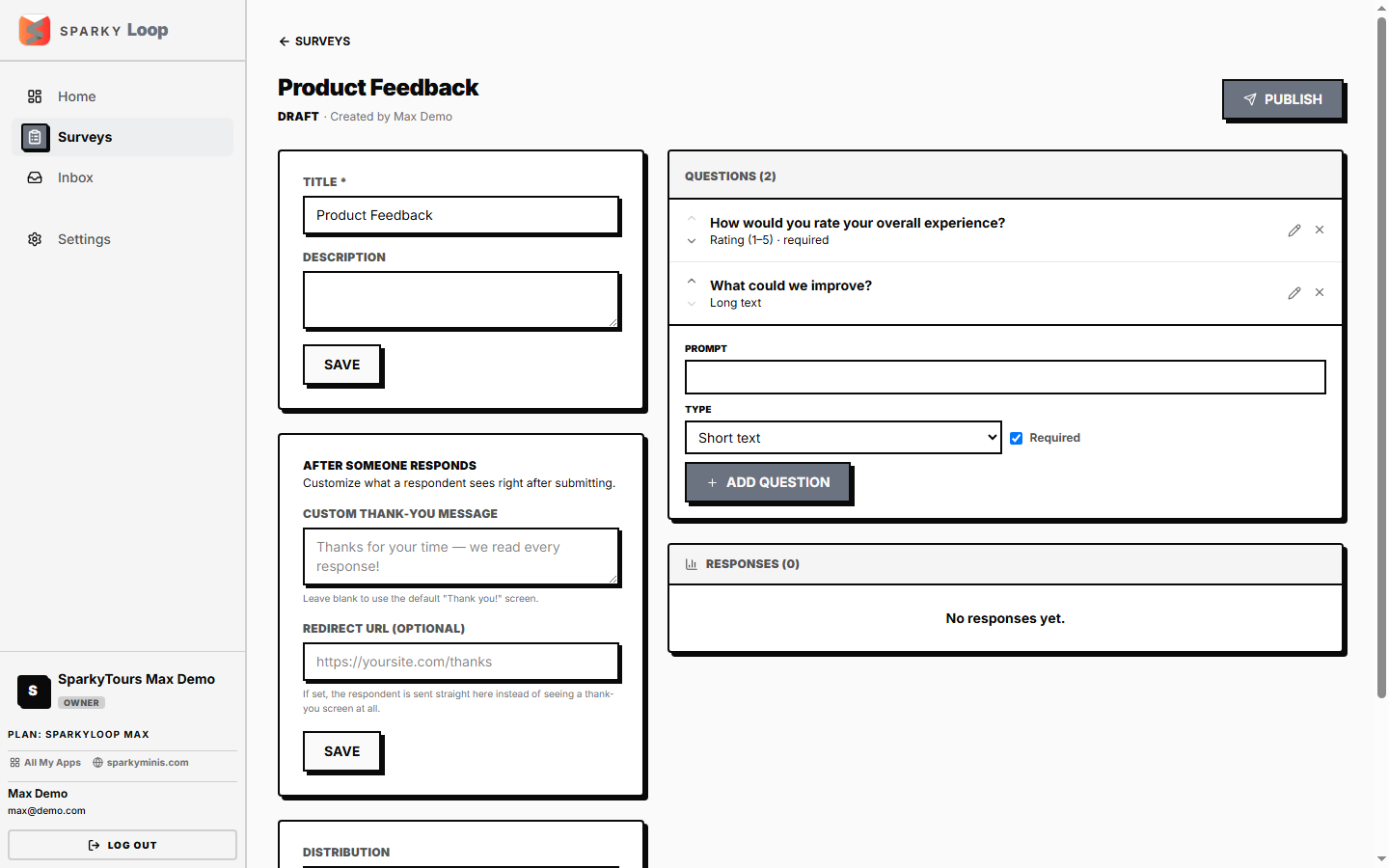
While a survey is still a draft, add a question: pick a type (short text, long text, single choice, multiple choice, 5-point rating, 10-point rating, NPS, or — for 360-style reviews — a matrix/competency rating), write the prompt, mark it required or optional, and (for choice/matrix types) list the options. Edit or remove any question the same way, and reorder questions up or down. Once a survey is published, its questions are locked.
How to set distribution and anonymity
While still a draft, choose how people will access the survey: a public open link, gated to your organization's own members only (if your plan supports it), or invite-only with individually tracked links (also plan-gated). Choose whether responses are collected anonymously or with the respondent's identity attached.
How to invite people to an invited-distribution survey
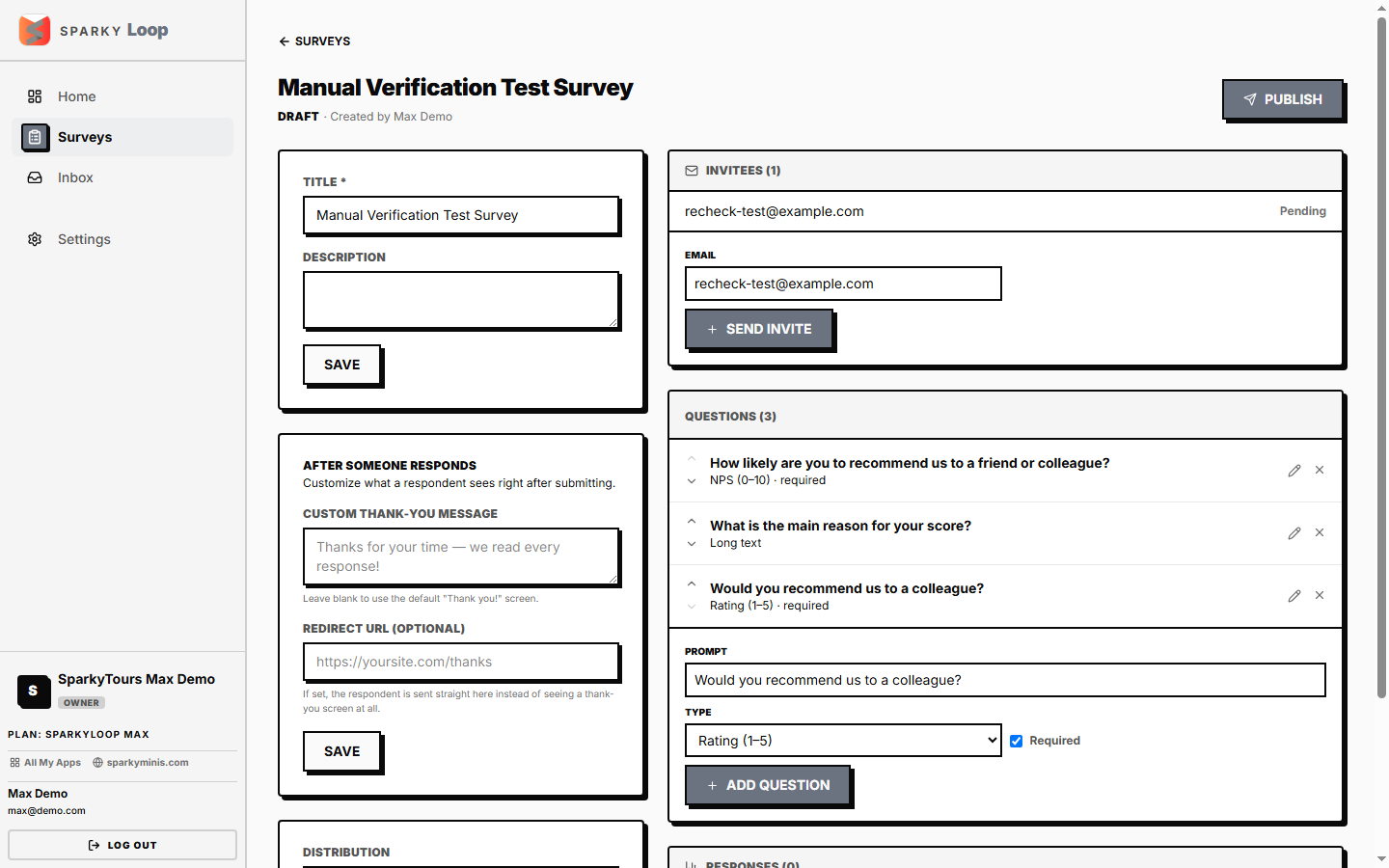
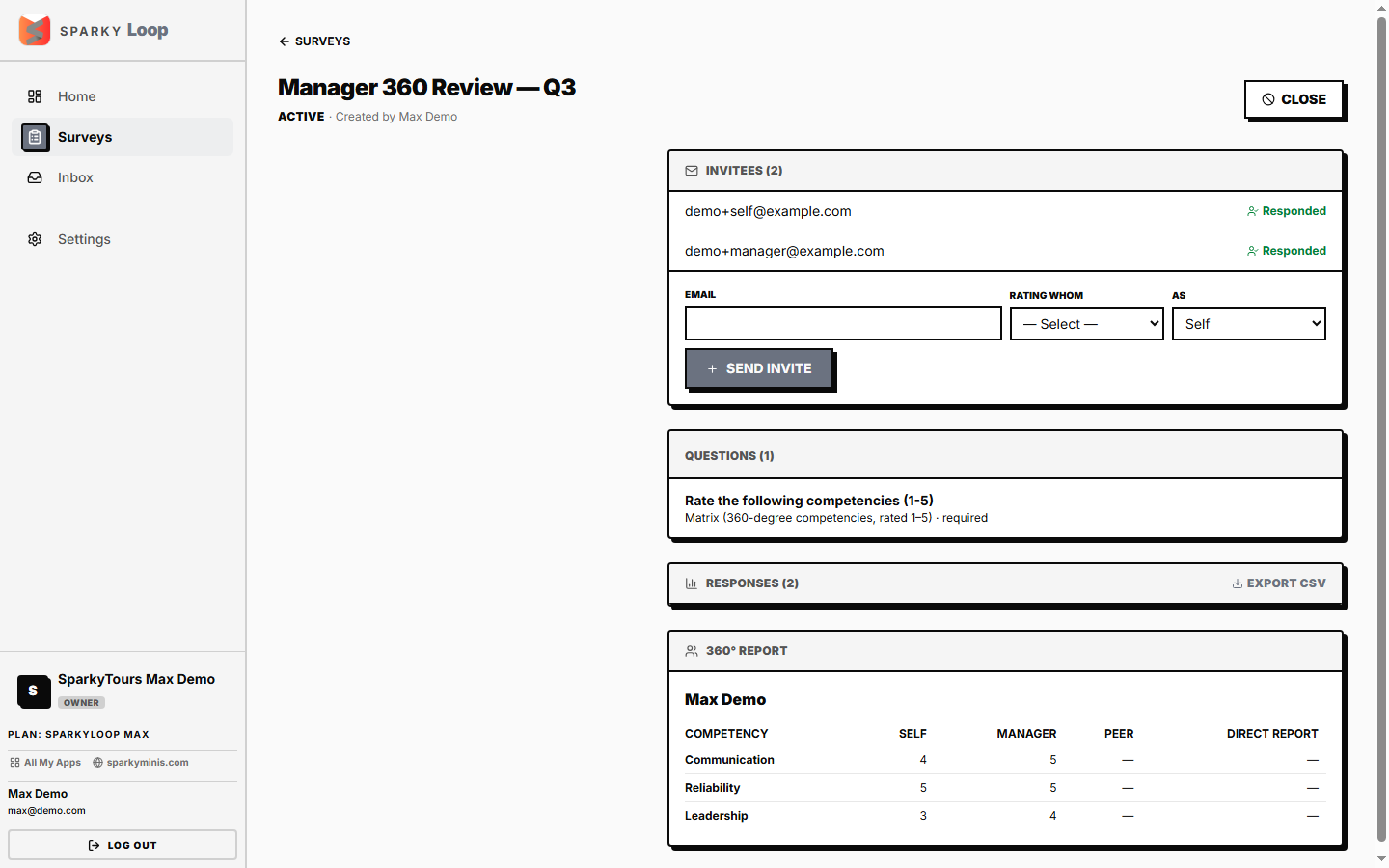
If a survey is set to invite-only distribution, send invites by email. For a 360-style survey (one with a matrix question), each invite also needs a subject (who's being rated) and a relationship (self, manager, peer, or direct report).
How to publish or close a survey
Publish a draft once it has at least one question (and, for invite-only surveys, at least one invite sent) to start collecting responses — this locks its questions and distribution settings. Close an active survey any time to stop collecting new responses.
How to view results
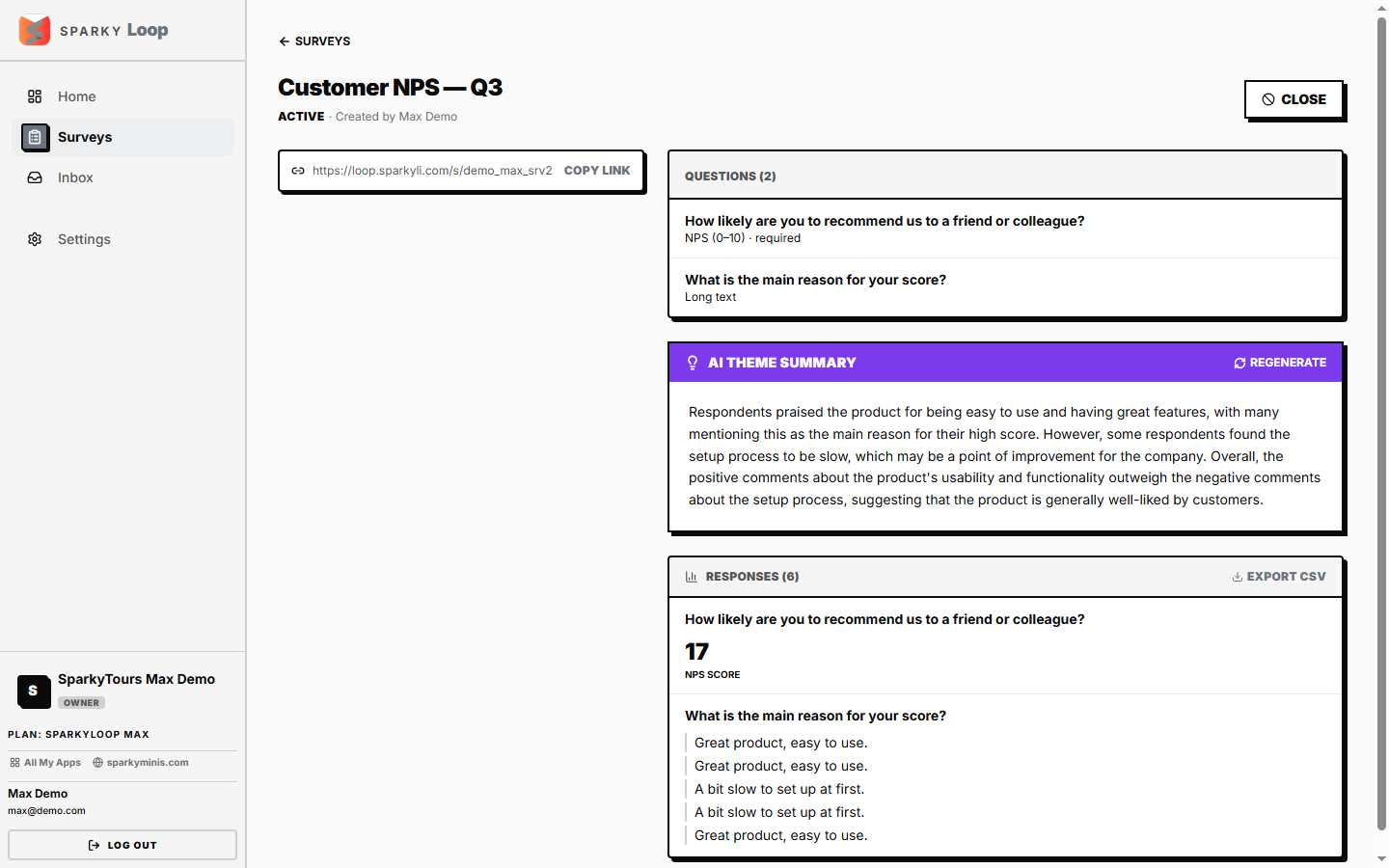
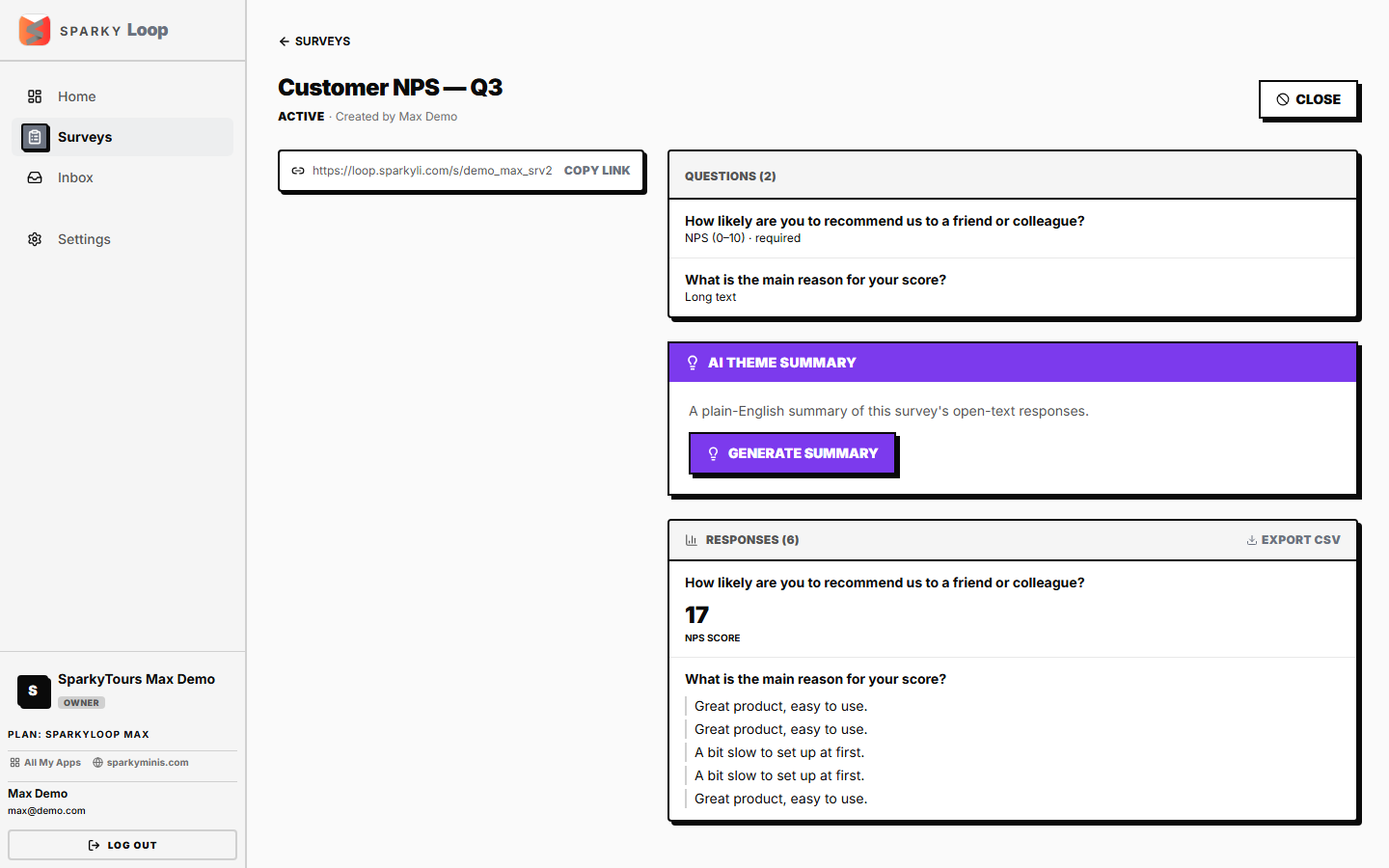
Open a survey to see live analytics per question — choice breakdowns, average ratings, NPS score, and open-text responses. If responses aren't collected anonymously, you'll also see who answered.
A 360-style survey shows a combined report across everyone who rated a given subject — one row per competency, one column per rater relationship (self/manager/peer/direct report).
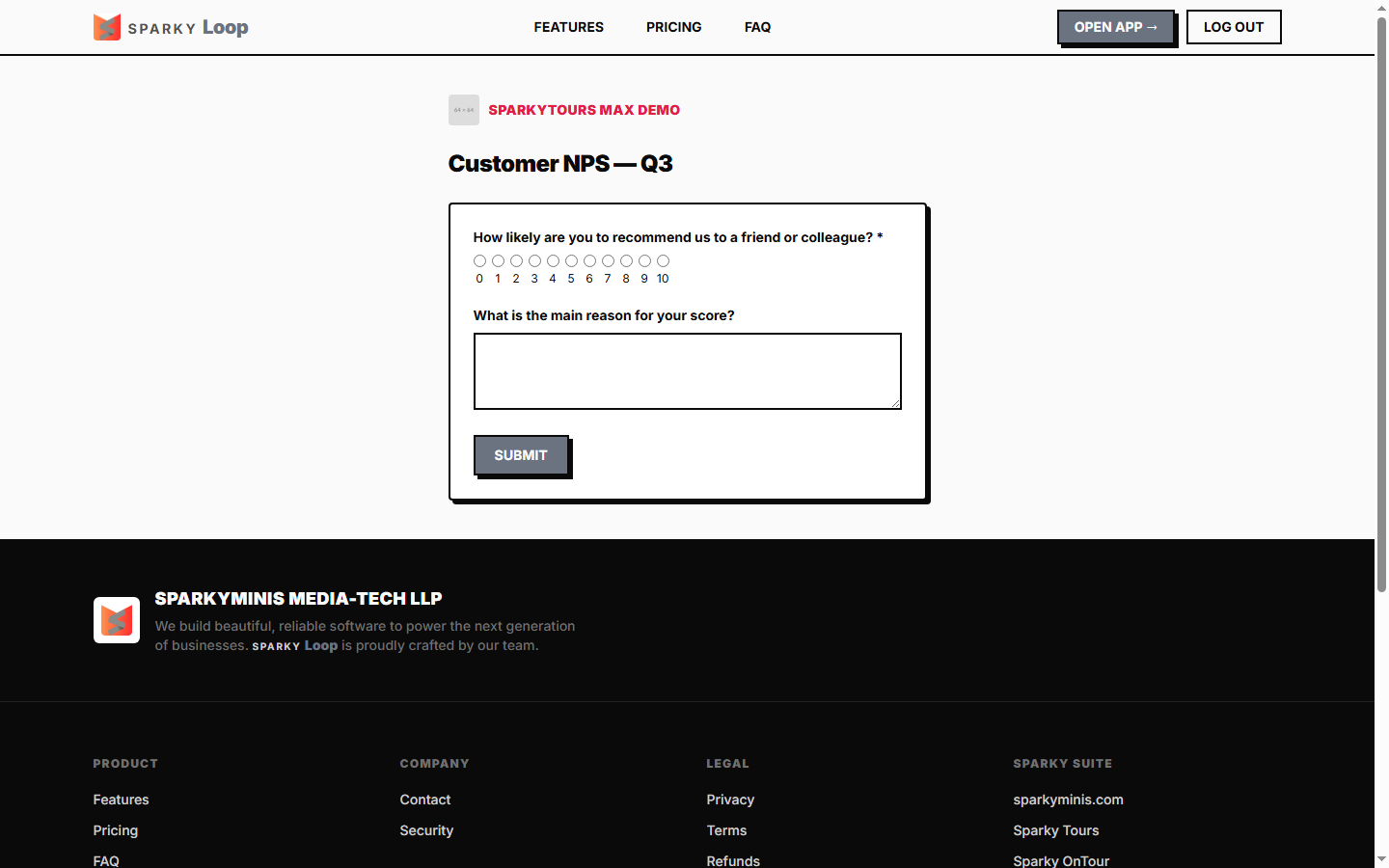
How to see what a respondent sees
Every survey has a public link (or, for invited surveys, an individual link per invitee) — open it to see the actual response form respondents fill in, with no login required for public/invited links.
How to export responses
From a survey, export all its responses as a CSV file — one row per response, one column per question.
How to delete a survey
Delete a survey you no longer need, then confirm.
How to summarize open-text feedback (AI)
If your plan includes AI Insights, get a plain-English summary of the themes in a survey's open-text answers — available once there are open-text responses to summarize.